How to Convert AI, PSD, and SVG Files Without Photoshop
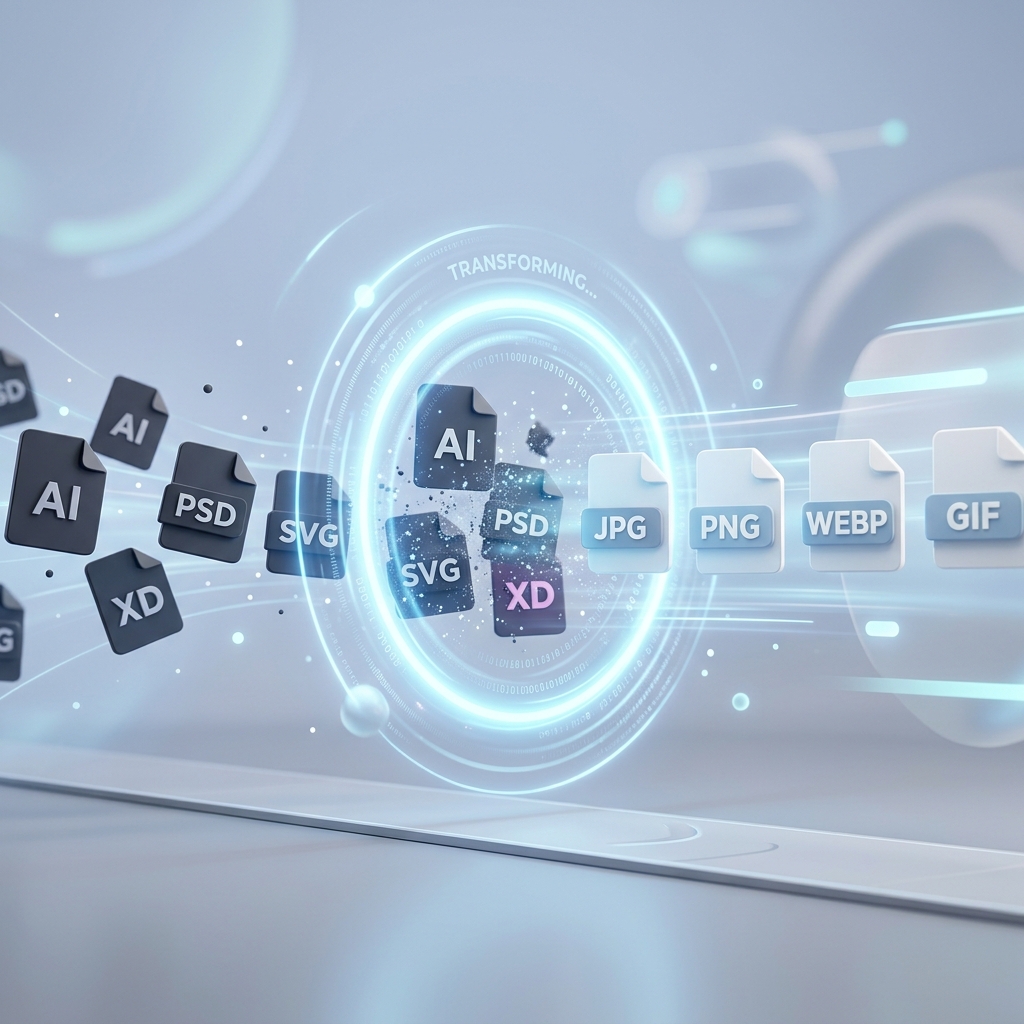
Ever received a file with a `.psd`, `.ai`, or `.svg` extension and realized you don't have the software to open it? You're not alone. Professional design files are essential for quality, but they are notoriously difficult to handle without expensive Adobe subscriptions.
Fortunately, the web has evolved. You no longer need to install gigabytes of software just to view or convert a logo. In this post, we'll show you how to quickly turn these professional formats into standard JPG or PNG files—all from your browser.
The Challenge of Professional Formats
Adobe Photoshop (PSD) and Illustrator (AI) files are "layered" formats. They contain a wealth of information—paths, layers, filters, and vectors—that standard image viewers simply don't understand. SVGs are different; they are "Scalable Vector Graphics" written in XML code. While most browsers can display SVGs, many social media platforms and document editors still require a flat image like a PNG.
1. Converting PSD to JPG/PNG
If you're working on a project and a designer sends you a PSD file, you likely just need the final visual. Instead of asking them for a re-export, you can use an online PSD converter. Our tool at VerifyDocs reads the flattened preview of the PSD and allows you to download it instantly as a high-quality PNG or JPG.
- PSD to JPG: Best for photos or complex designs where you need a smaller file size.
- PSD to PNG: Best if you need to preserve transparency or sharp text elements.
2. Handling Adobe Illustrator (AI) Files
AI files are the industry standard for logos and illustrations. Because they are vector-based, they can be scaled to any size without losing quality. However, sharing an AI file with a client who doesn't have Illustrator is a recipe for frustration. Converting AI to PNG ensures they see exactly what you designed, with the background transparency intact.
3. The Versatility of SVG Conversion
SVGs are incredible for web design because they stay sharp at any resolution. But what if you need to put that logo into a Word document or a PowerPoint presentation? These apps often struggle with SVG files. Converting your SVG to JPG or PNG makes it compatible with almost every piece of software on the planet.
Why Use an Online Workspace?
Speed and convenience are the obvious answers, but there's more to it:
- No "Locked-In" Software: You're not tied to one machine with a specific license.
- Consistency: Using the same conversion engine ensures your colors and quality remain consistent across different files.
- Privacy: Tools that process files locally in your browser mean your sensitive design assets never touch a server.
Step-by-Step Guide to Conversion
Ready to convert? Follow these three simple steps:
- Navigate to the Image Tools section.
- Select the specific converter you need (e.g., "AI to PNG").
- Drag and drop your file, wait a second for processing, and hit download.
Conclusion
Don't let file formats slow you down. With the right browser-based tools, you can handle professional design files like a pro, without the professional price tag. Explore our conversion tools today and keep your projects moving forward.
Try our conversion tools now
Fast, free, and no sign-up required. Convert your AI, PSD, and SVG files in seconds.